

Unity Headless Server Build Settings, Flags and Common Mistakes
A unity headless server build allows developers to run multiplayer game logic on a server without rendering graphics or displaying a user interface. This approach is useful for dedicated multiplayer servers, real-time game sessions, matchmaking environments, and scalable online gaming infrastructure.
Building a reliable headless server requires more than disabling graphics. Developers must configure the correct build target, enable dedicated server settings where supported, handle startup arguments, and separate server-side gameplay logic from client functionality. Understanding these requirements helps prevent deployment failures and improves server performance.
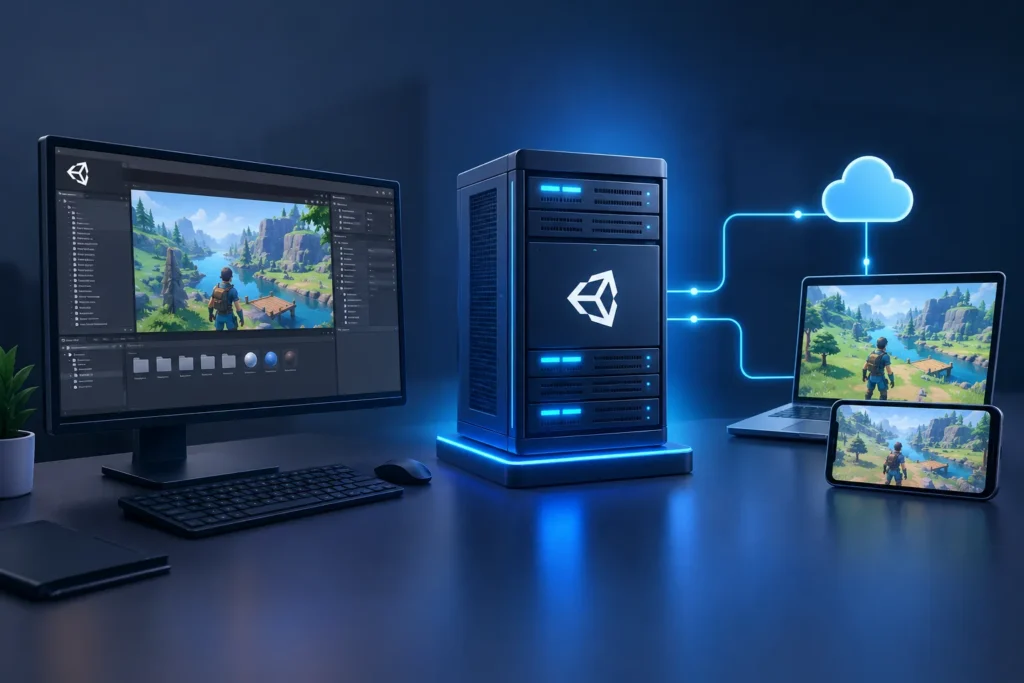
What to Configure Before Building a Unity Dedicated Server
Before creating a unity headless server build, review your Unity version, project architecture, networking framework, and target operating system. The correct settings depend on whether your game uses Unity’s Dedicated Server build support, a third-party networking solution, or a custom server architecture.
A carefully configured build reduces unnecessary processing and makes the server easier to deploy, test, and maintain. Check these four areas before publishing your server application.
Select the Correct Build Target
Choose the appropriate server operating system and architecture, ensuring compatibility with your hosting environment and installed Unity build modules.
Enable Dedicated Server Support
Use the Dedicated Server build target when supported by your Unity version to apply server-oriented optimizations and remove unnecessary client features.
Configure Startup Arguments
Support command-line parameters for server ports, maximum player counts, configuration files, and environment-specific settings required during startup.
Separate Server and Client Logic
Use server-authoritative gameplay, conditional compilation, and dedicated initialization paths to prevent client-only systems from running on the server.
How to Create a Unity Headless Server Build
Step 1: Review your Unity version and project. Confirm that your Unity installation includes the required platform modules. Check your networking package, scene configuration, server bootstrap logic, and dependencies to ensure they support dedicated server execution.
Step 2: Configure the build target. Open Unity’s Build Profiles or Build Settings, depending on your Unity version. Select the appropriate platform and choose the Dedicated Server subtarget if it is available for your configuration. Unity’s dedicated server support and menu options vary by version, so consult the official documentation before proceeding.
Step 3: Build and test the server. Build the application, launch it in a terminal, and inspect startup logs. Verify that networking initializes correctly, gameplay simulation runs without graphics, clients can connect, and server shutdown is handled cleanly.
Important Command-Line Flags and Runtime Settings
A production server should accept configuration options that make it easier to run different environments without rebuilding the entire game. Command-line arguments can help control networking, logging, and server initialization.
Batch mode and no graphics
Use -batchmode -nographics where appropriate for headless execution. These flags do not replace the correct Dedicated Server build configuration.
Port and player configuration
Implement your own argument parser for values such as -port 7777 or -maxPlayers 32; these are application-defined arguments, not universal Unity flags.
Logging and diagnostics
Use -logFile where supported to direct logs to a file, and monitor startup errors, connection failures, and unexpected shutdowns.
Six Common Unity Headless Server Build Mistakes
Choosing the wrong build target
A desktop client build may retain unnecessary features or behave differently. Verify the platform and Dedicated Server subtarget before producing release builds.
Assuming headless means server-authoritative
Removing graphics does not automatically secure gameplay. Validate important actions, movement, inventory changes, and game outcomes on the server.
Ignoring client-only dependencies
UI systems, camera scripts, audio components, and input handlers may cause errors. Separate client functionality and initialize only the components required by the server.
Hardcoding network settings
Fixed ports, player limits, and environment URLs make deployments difficult. Read configurable values from command-line arguments or environment-specific configuration.
Skipping multiplayer testing
A successful build does not guarantee stable networking. Test simultaneous connections, disconnections, latency, scene transitions, and unexpected client behavior.
Neglecting server monitoring
Missing logs and health checks make problems harder to diagnose. Track CPU usage, memory consumption, connection counts, exceptions, and server uptime after deployment.
Frequently Asked Questions
A typical headless dedicated server does not need a graphics card for normal rendering because it does not render the game as a client does. Actual hardware requirements depend on your workload and plugins.
Common causes include missing dependencies, incorrect build settings, unsupported plugins, client-only code, configuration errors, and networking failures. Review logs and test the build in an environment matching production.
Prepare your project, select a compatible platform, configure the Dedicated Server subtarget if supported, build the application, and test its startup and network functionality.